

Tutorial: How to Add a Bulletproof CTA Button Over a Background Image
Encourage clicks with clear calls-to-action. Buttons are effective in prompting reader engagement.

In email design, calls to action come in all shapes and sizes: clickable buttons, text, images, icons, and so on. If it can be linked, it is! But perhaps the best way to show readers you want them to tap is a button — it's the only item whose sole purpose is to be clicked. So, even emails with beautiful linked images still include CTA buttons that invite readers to click.
This means many emails get opened in one of two ways: a hero image with a CTA button sitting below it (inverse pyramid design) or a hero image with a faux CTA "button" designed into the image to inspire clicks. But what if you want to position a bulletproof CTA button over a background image? In a modern email editor, it can be done, and it only takes a few seconds, maximizing email design best practices too.
Today's Email Inspiration
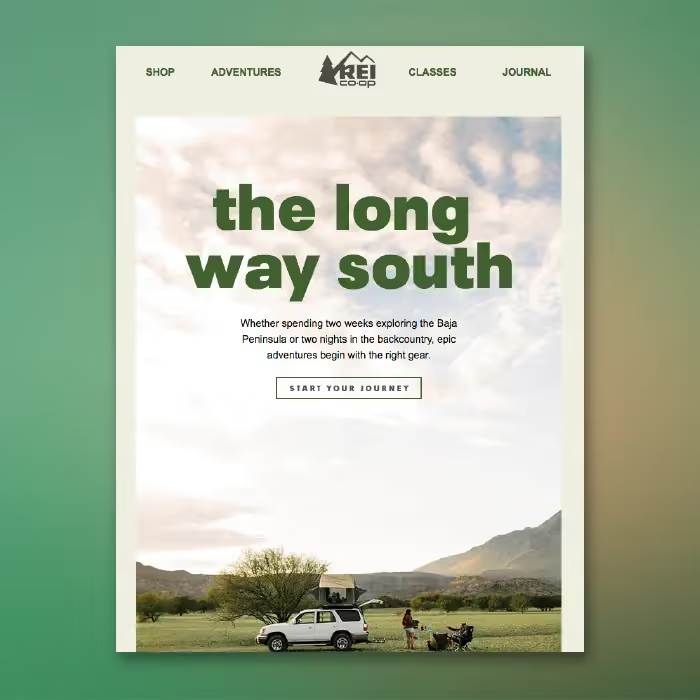
One outdoor retailer's email opened with live text atop a gorgeous hero image — a beautiful opening. But that CTA button was an image, and a little blurry. Today we'll show you how to build an email like this, but with a bulletproof CTA button atop a background image.
Tutorial: Add a bulletproof CTA button over an image
Choose an email template
Choose any template to get started. A basic one-column structure is a good place to begin.
Enable the row background image
If you want to add live text and a CTA button over your image, make it a "background image." To create a background image, first select your content row, then check out the Row background image menu option in the right panel. Enable it, then click Change image to browse for a photo.
Browse for an image
You can find free, high-resolution stock photos from Unsplash, Pexels, and Pixabay directly in the editor, or upload your own image, or paste in an image URL.
Adjust background image settings
Once you select your background image, you can also adjust how it appears in the email. If the image you pulled is too large for the email, use the built-in photo editor to resize, crop, filter, or add special effects. You can also adjust how it looks with three key settings: Full width, Repeat, and Center. Use them to find the best fit for your background image. Select Repeat, for example, to create a pattern that spans the entire width of the email.
Pull in your button (and any other content!)
Pull in a button from the content menu, along with any text boxes you need. Once you've got a bulletproof CTA button and live text atop your background image, format the button's color, text formatting, width, alignment, and more in the Content Properties menu until it looks right.
Don't forget to set up a default background color
Background images are stunning and easy to implement, but like other advanced email design techniques, not all email clients support background images. For those clients that don't (and for best results when images are blocked), make sure to choose a color in the necessary row as a default background color, so your message still looks good when the background image doesn't render. To set a background color, simply select the row, then use the Structure menu to choose a Row background color or Content background color.
Articles to wet your whistle




.png)
Subscribe to our newsletter.
Dive into the world of unmatched copywriting mastery, handpicked articles, and insider tips & tricks that elevate your writing game. Subscribe now for your weekly dose of inspiration and expertise.